
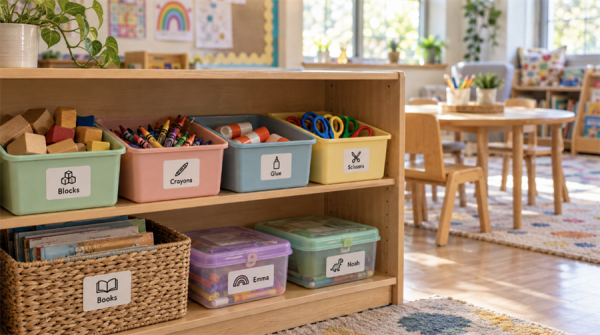
A new student joins your class. A folder needs a name. The scissors have somehow migrated into the glue-stick bin. Small labeling jobs can pile up quickly.
The best label maker for teachers depends on how you work: Hanin Qutie suits portable, everyday labeling; the Hanin NEW 1 delivers smart, easy custom labels for classroom supplies, student belongings, and storage; the Hanin D25 is ideal for teachers printing sets of student name labels—especially from Excel.
Next, we'll cover what to look for in a classroom label maker, including concerns shared by users on Amazon and Reddit. We'll also recommend three Hanin models for different classroom routines, with a focus on kindergarten and elementary school teachers.
What Should Teachers Look for in a Classroom Label Maker?
The best classroom label maker should be easy to use, support the right label sizes, and keep refill costs manageable. For everyday classroom organization, a portable Bluetooth model is often enough. For full class sets of student name labels, batch printing is worth prioritizing.
Here are five things to consider:
1. Label Size & Format for Classroom Labels
Narrow labels work well for reading group folders, small supply containers, and short student names. A built-in cutter, like the one on the Hanin Qutie, is a handy bonus for custom-length labels.
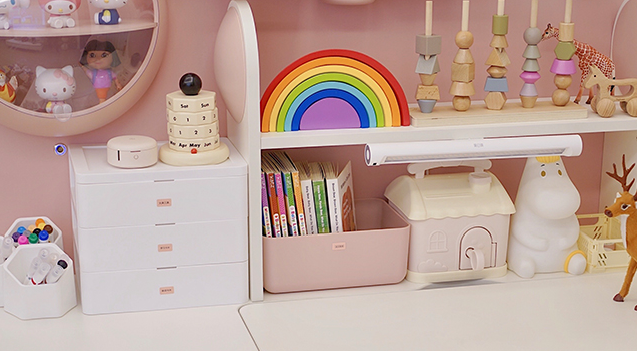
For marking large storage bins, baskets, and classroom drawers, choose a model that supports wider labels for multi-line text—ideally up to 2 inches.
2. Printing Volume & Batch Label Printing
For occasional labels and quick replacements, a portable label maker is usually enough. If you're printing 30–50 student name labels at once, choose a desktop model with Excel or CSV import to avoid typing each name individually.
3. App, Fonts & Templates for Student Name Labels
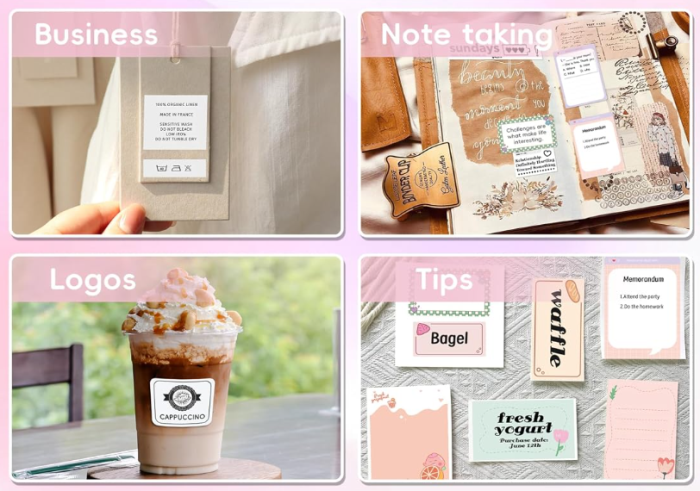
Look for an easy-to-use app with clear fonts, icons, and reusable templates. Picture-and-word labels are especially useful in preschool and kindergarten, helping young students identify and return supplies even before they can read.
Image or PDF import is a bonus if you want to reuse existing classroom designs.
4. Easy Setup & Accurate Alignment
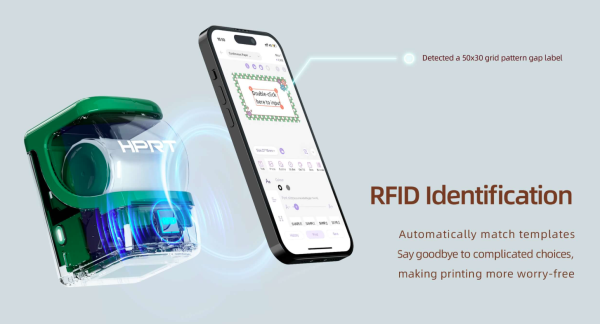
Easy roll loading and automatic label recognition make a big difference. The latter helps prevent wasted first labels and misaligned prints—two common complaints on Amazon.
For multi-line text or more complex designs, a smart label maker like the Hanin NEW 1 uses RFID recognition and auto-calibration to keep prints accurate.
5. Refill Cost & Availability for Classroom Label Makers
Some teachers on Reddit also raise concerns about refill costs and how well labels hold up to everyday classroom use.
Compare refill costs and how easy replacements are to find. For art supply bins or classroom cleaning bottles, look for compatible waterproof, scratch-resistant labels from the manufacturer. Official refills may cost more but generally offer better print quality and compatibility.
Which Hanin Label Maker Is Best for Teachers: Qutie vs NEW 1 vs D25
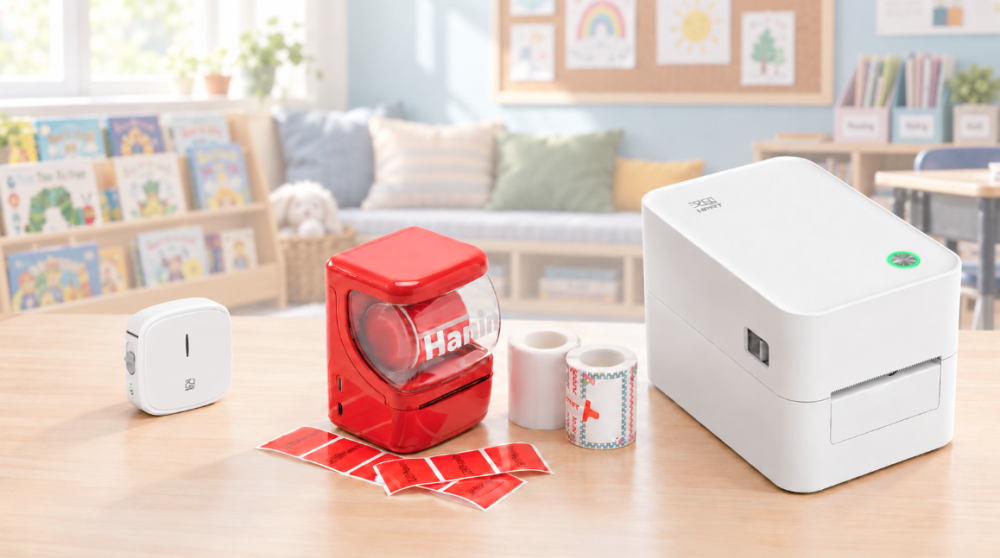
Start with what you print most often. Do you need quick everyday labels, custom designs for classroom storage, or a full class set of student names? Here are three popular Hanin inkless label makers meeting different classroom labeling needs.
|
Classroom Needs |
Recommended Hanin Model |
Why Choose It |
Before Buying |
|
Category labels or short name labels for reading group folders, flashcard pouches, teacher desk drawers and small classroom supplies—handy for quick labeling and replacement labels. |
Qutie Mini Label Maker |
Weighs just 138 g; Bluetooth printing and a built-in cutter for custom-length labels |
Uses 15 mm-wide label stock; best suited to small, narrow labels |
|
Custom labels and picture-and-word labels for storage bins, subject folders and learning centers |
Supports 25–50 mm-wide label rolls; offers creative templates, RFID-based template matching and automatic positioning for easier print setup |
Does not print full-color images |
|
|
Batch printing of student name labels, classroom library category labels and teaching material identification labels |
Suits small to medium print batches; USB connectivity, optional Bluetooth and support for 20–60 mm-wide labels |
Requires external power |
All three use ink-free thermal printing, so there's no ink or toner to replace. Hanin also offers official label refills in a wide range of colors and styles—these premium supplies are waterproof and scratch-resistant, helping classroom signs and storage labels last longer.
Just make sure compatible label refills are available for the sizes and finishes you need.
Here's how each model fits into a teacher's daily routine—and what to know before buying.
1. Hanin Qutie: Portable Label Maker for Narrow Labels
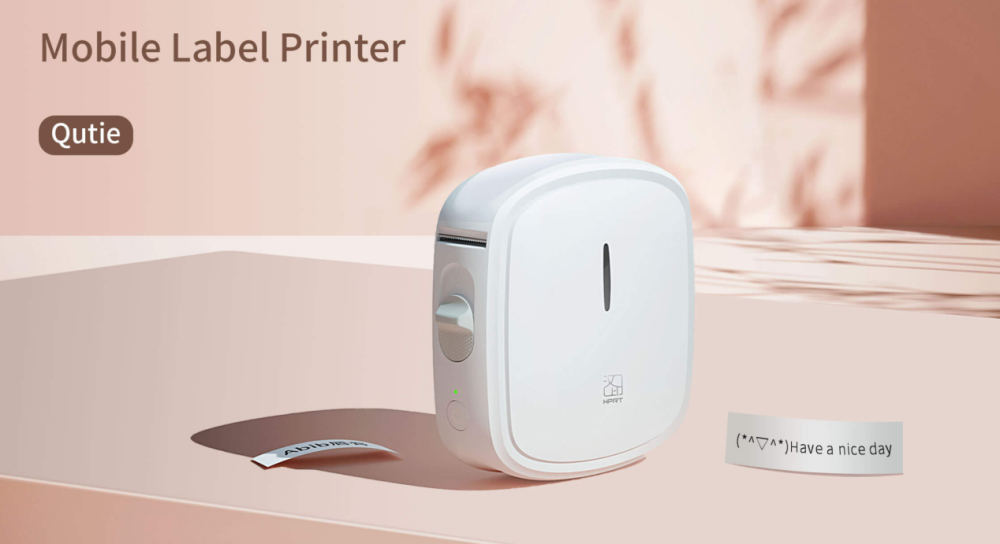
For kindergarten and elementary school teachers who move between classrooms, the lightweight Qutie Bluetooth label maker is a handy companion for everyday labeling.
✔️ Easy to carry: At just 138 g and 87 × 84 × 29 mm, Qutie takes up little space in a crowded desk drawer and is easy to pass between colleagues sharing classroom setup tasks.
✔️ Bluetooth phone printing: Edit and print labels where you're organizing—at your desk, beside a supply drawer, in a learning center or craft stations.
✔️ Custom-length labels: Supports pre-cut labels and continuous label tape. Adjust continuous tape length for student names, folder titles or journal stickers, then trim neatly with the built-in cutter.
✔️ Varied label options: Hanin offers continuous tape and gap labels in multiple colors. Pair them with the HerePrint app's fonts and graphics to create clear classroom labels, colorful name stickers and craft decorations.
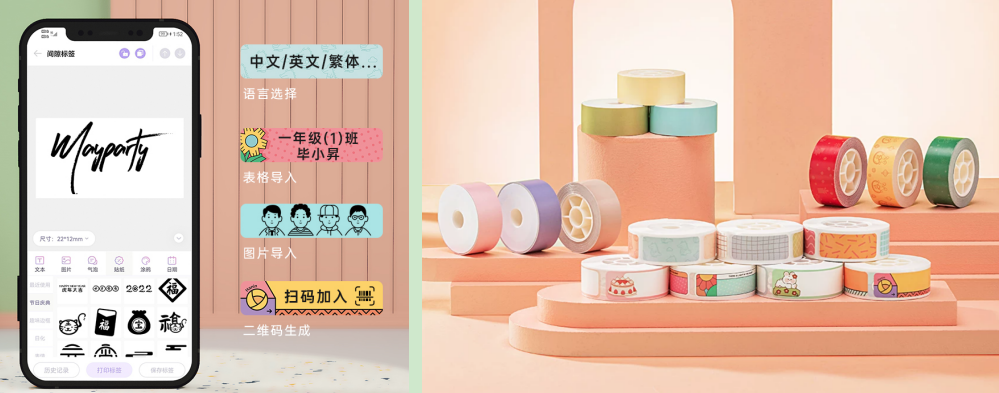
Before buying: Check that compatible label widths suit your layout. Continuous tape offers adjustable length, but its width remains fixed.
2. Hanin NEW 1: Smart Label Maker for Classroom Supplies and Storage
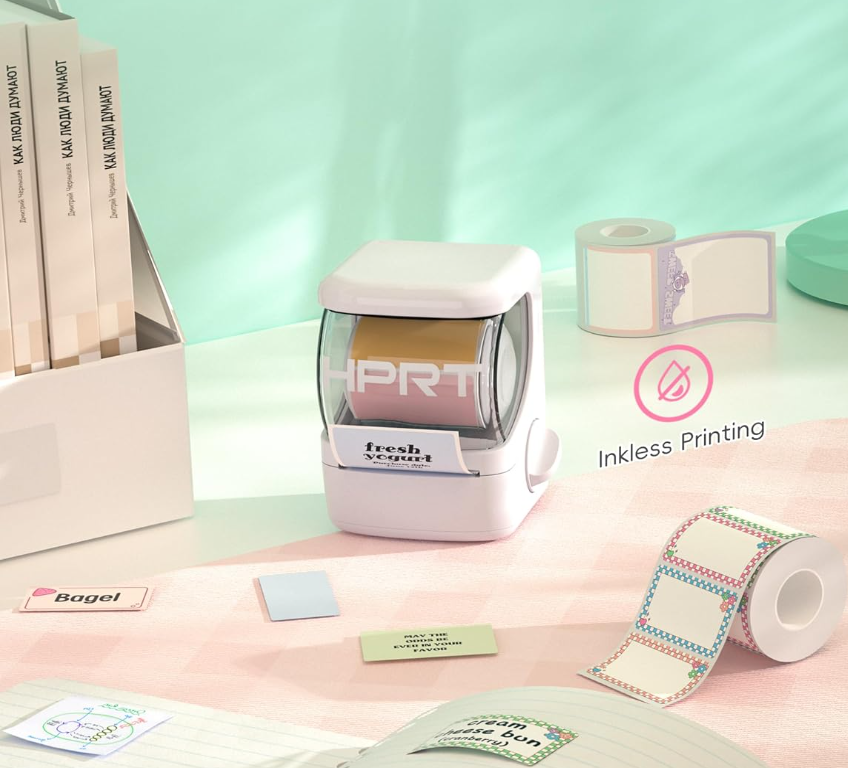
Choose the NEW 1 Inkless Label Maker to create playful round or square labels and custom stickers for classroom bins, subject folders and learning centers.
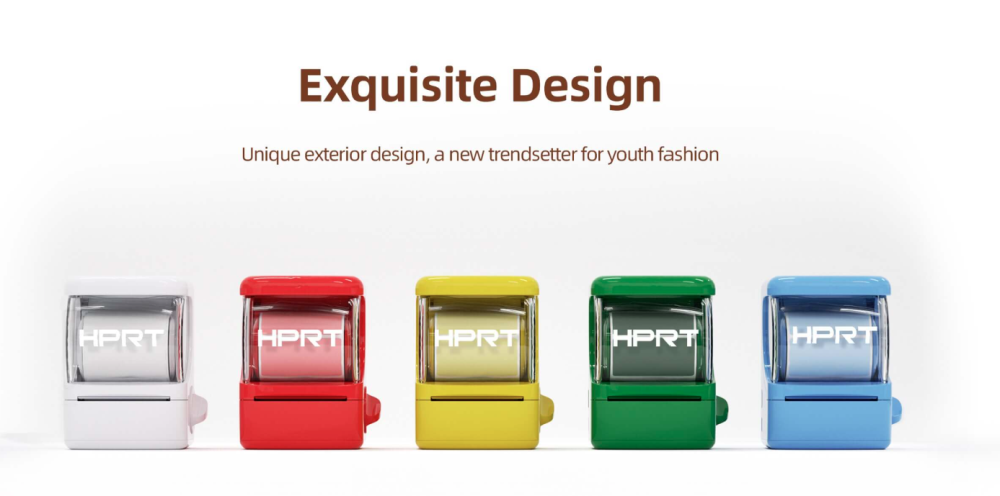
✔️ Playful design: A fun shape adds a cheerful touch to your teacher desk, while its compact size makes it easy to move around the classroom.
✔️ Versatile label options: Supports compatible Hanin label stock in widths of 25–50 mm, with round, square and transparent options for student name labels, storage labels and picture-and-word labels for art supplies.
✔️ HerePrint design tools: Combine text, templates, images and graphics—for example, a book icon with "Reading" or a group number on a manipulatives tub.
✔️ Smart label recognition: RFID identification matches supported Hanin supplies to printing templates, simplifying changes between compatible label formats.
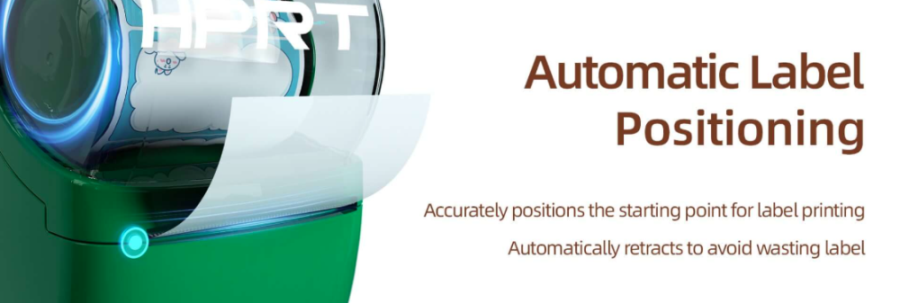
✔️ Less first-label waste: Automatic positioning and label retraction help reduce feed waste when preparing different classroom labels.
Before buying: 50 mm is the maximum media width. Colored or patterned label stock adds variety, but NEW 1 does not print full-color images.
3. Hanin D25: Desktop Label Printer for Batch Name Labels and Classroom Organization from Excel
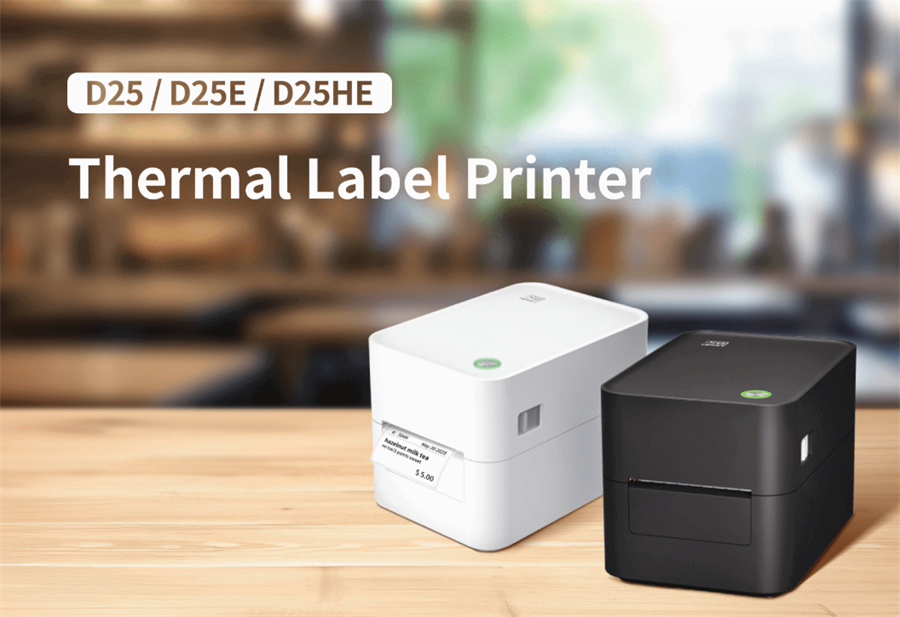
Choose the D25 2-Inch Label Printer for quickly printing class sets of student name labels or batches of classroom storage labels, library category labels and teaching material ID labels in an office or dedicated workspace.
✔️ Easy Excel batch name printing: Just import your class roster and print individual student name labels for folders, books, and supply boxes—no more typing each name one by one.
✔️ Fast printing, fewer roll changes: Prints at 76 mm/s and supports label rolls up to 80 mm in diameter, helping you prepare class sets with fewer roll changes.
✔️ Flexible label sizes: Supports 20–60 mm-wide label stock for combining names, class details, subjects, or material IDs. You can also create wider labels for reminders and notes.
✔️ Desk-friendly workflow: Prepare labels on your computer via USB, or print wirelessly with optional Bluetooth. The companion software works on both desktop and mobile.
Before buying: D25 requires external power. Confirm Bluetooth availability if you need wireless printing; it does not support 4 × 6-inch labels.
How Can Teachers Print Classroom Labels with a Hanin Label Maker?
For a few student name labels, folder titles or supply labels, a portable Bluetooth model keeps printing simple. Here's how to get started with Hanin NEW 1:
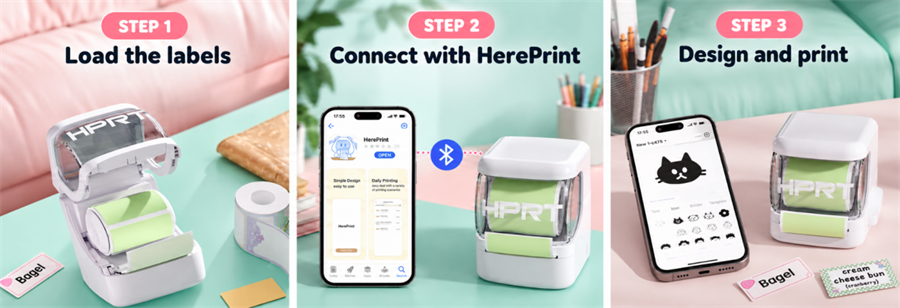
1. Load the labels. Open the cover and insert a compatible label roll with the print side facing down. Pull 1–2 cm of label material through the outlet, then close the cover and turn on the printer.
2. Connect through HerePrint. Download the HerePrint app, enable your phone's Bluetooth and connect to NEW 1 within the app.
3. Design and print. Open a label template, add text or graphics and adjust the layout. Print one label to check alignment and readability before printing additional copies.
Tip: Save frequently used designs so you can change a student name or subject without rebuilding the layout.
How to Print Student Name Labels from Excel?
For a full class set of name labels, the D25 lets you import an Excel roster instead of typing each name individually.
1. Prepare your roster. Put student names in one column headed "Student Name." Check spelling and remove blank rows.
2. Choose the label layout. Select the size for your folders, books or supply boxes. Keep text and graphics within D25's 48 mm printable width.
3. Import and link the names. Import the Excel file through HereLabel's spreadsheet-import function, then link the "Student Name" column to the label's text field.
4. Preview and print. Check that the longest name fits and print one test label. Once the layout looks right, print the selected student names and apply the labels to clean, dry surfaces.
Are Thermal Labels Durable Enough for Classroom Use?
Yes—with the right label material.
Hanin's genuine thermal labels offer a degree of water and abrasion resistance, adhere securely and resist edge lifting, and are less likely to leave sticky residue when removed. They're suitable for student belongings, plastic storage bins and frequently handled classroom supplies.
For best results, apply labels to clean, dry surfaces and press the edges down firmly. Always test one label on the intended item before printing a full set.
What Else Should Teachers Know Before Buying a Label Maker?
1. Can I Print Existing PDF or Image Designs?
Yes. Qutie, New 1 and D25 all support PDF and image import. Size the design for the chosen label, check the preview and test-print small text or detailed graphics.
2. Can I Make Color-Coded Classroom Labels?
Compatible colored or pre-patterned label stock can help distinguish subjects or groups. Combine the color with a clear word or symbol so students can identify the category without relying on color alone.
3. Do I Need a Phone to Use These Printers?
Qutie and NEW 1 use Bluetooth phone workflows. D25 can connect to a computer through USB; choose the optional Bluetooth version if you also want mobile printing.
Find the right Hanin label maker for your classroom—whether you're labeling a few folders, organizing supplies, or printing names for the whole class. Save your favorite layouts so you're ready for the next labeling job, and spend less time on setup and more time teaching.
Make classroom labeling one less thing to worry about with Hanin. Explore our full range of label makers and find the right one for your classroom.